Upland BlueVenn's Customer Data Platform, Unify, allows you to manage your customer data, using data loaders and connectors to ingest data from your existing systems and create a single customer view (SCV) for use in your marketing.
The application interface is divided into three main areas:

The navigation pane - located on the left hand side, the navigation pane contains all your menu icons. Clicking each icon expands the associated menu.
The main view pane - the main view pane defaults to your homepage on opening and is where tabs are displayed when opening a menu from the navigation pane.
The title bar - located at the top of the interface, the title bar contains links to the help center, your system information, and your profile menu.
The homepage
The default homepage is set by your administrator when your user account is created. You can change your homepage to one of these options:
-
Redirect URL - a web page URL, e.g. your company’s latest news page.
-
Menu option - make your homepage one of the Unify menus, e.g. select the query manager menu from the drop down to have the query manager open when you log in.
-
Text/HTML - enter text or HTML into the text box to create your own homepage.
The navigation pane
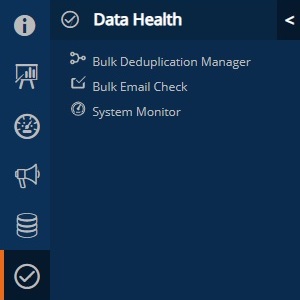
The icons displayed in your navigation pane will depend on your security role and which menus are assigned to that role. Clicking each icon expands the associated menu, granting access to the tools and menus within that menu, e.g. clicking the tick icon expands the data health menu to show data health tools.
The main view pane
Selecting a menu from the navigation pane opens that menu as a tab in the main view page. Multiple tabs can be opened at once.
Some tabs will open additional tabs when a feature is clicked, e.g. clicking a person ID in the people menu will open a new tab with details of that person.
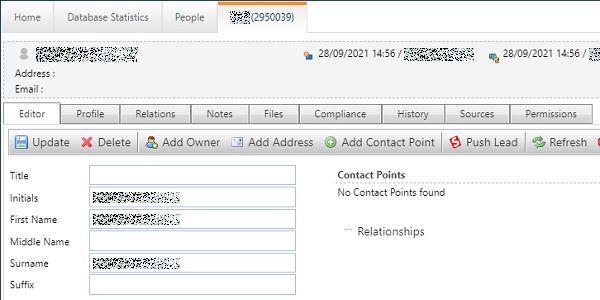
Note: When closing a tab, it is important to remember to first click the update icon to save changes as not all changes are automatically saved when closing a tab.
The title bar
The title bar contains links to the help center, your system information, and your profile menu.

Clicking the information icon will open a tab containing product information such as version and licensing.
Clicking the question symbol will open the help center and allow you to search for articles.
Clicking on your name in the title bar opens the profile menu where you can view/edit your profile information, e.g. change your password.